| Step |
Action |
| 1 |
Go to Intel Web PO.
|
| 2 |
Click Advance Search button.

|
|
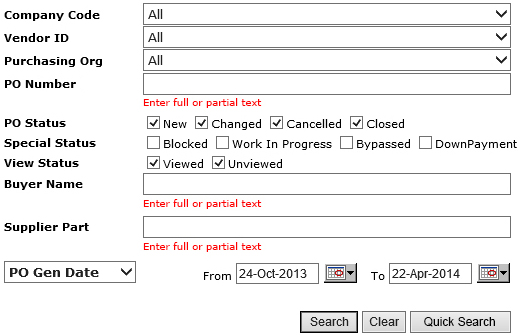
Result: The Advance Search form will be displayed.
|
| 3 |
Enter related keywords to specify and narrow down the search criteria.
|
|
Note:PO Gen Date:by default the date ranges will return PO’s no older than 6 months since creation.

|
| 4 |
Click Search button.

|
|
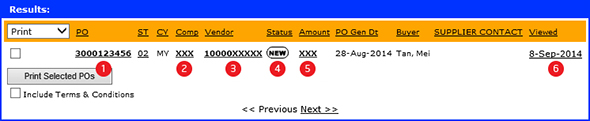
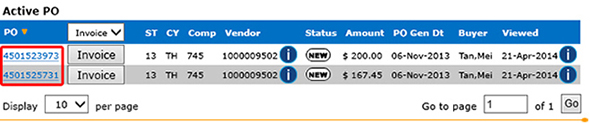
Result: The matching POs will be generated.
|
Note: Most statuses of a specific PO will be displayed under the Status column, EXCEPT for Bypassed PO  and Down Payment PO and Down Payment PO  . .
|

| Icon |
Remark |
 |
New PO |
 |
Changed PO |
 |
Cancelled PO |
 |
Closed PO |
 |
Blocked PO
- PO blocked by Intel Buyer
- Supplier users are unable to access or print them
- Web ASNs cannot be processed for these POs
|
 |
Work in Progress
- Intel Buyer has changed the PO to unapproved status
- Supplier users are unable to access or print them
- Web ASNs cannot be processed for these POs
|
|
Bypassed PO
- Intel Buyer has decided to bypass the supplier notification e-mail
- Normally due to minor changes (such as buyer name, buyer code, phone number, etc) with almost no impact on actual goods or services transaction
|
|
Down Payment PO
- Details for this PO type will display the down payment amount and date
|
| Step |
Action |
| 1 |
Go to Intel Web PO.
|
| 2 |
Enter PO Number.
For example, 3000123456.
|
| 3 |
Click Search button.
|
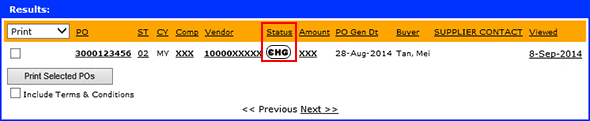
| Result: The matching PO(s) will be generated.
|
|
Notes: The “CHG” status indicates a PO has been updated/changed.
|
| 4 |
Click PO number.
|
|
Result: The respective PO details will be displayed in a new tab.
|
| 5 |
Scroll down and look for Line Number.
|
|
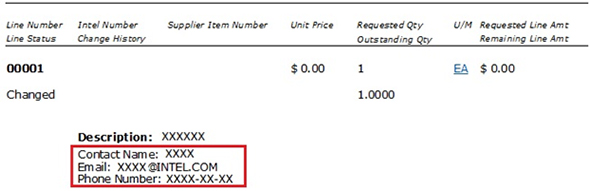
Result: A note indicating the PO status will be displayed.

|
OR,
Scroll down and look for Total Purchase Order Value.
|
Notes:
- A note indicating the PO status will be displayed if the PO has been closed/cancelled.

- Please contact the PO owner/recipient for detailed clarifications.
|
| Step |
Action |
| 1 |
Go to Intel Web PO.
|
| 2 |
Enter PO Number.
For example, 3000123456.
|
| 3 |
Click Search button.
|
| Result: The matching PO(s) will be generated.
|
|
Notes: The “CHG” status indicates a PO has been updated/changed.
|
| 4 |
Click PO number.
|
|
Result: The respective PO details will be displayed in a new tab.
|
| 5 |
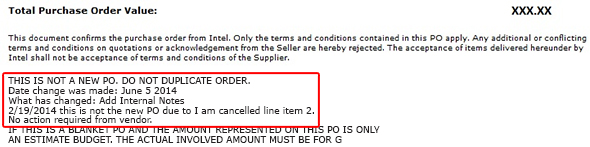
Scroll down and look for Total Purchase Order Value.
|
|
Result:A note indicating the PO status will be displayed, indicating the PO had a change made.
|
|
Note: Please review the updated term on the PO to verify the changes.
|
| Step |
Action |
| 1 |
Go to Intel Web PO.
|
| 2 |
Enter PO Number.
For example, 4200403597.
|
| 3 |
Click Search button.
|
|
Result: The PO record will be generated.
|
| 4 |
Click PO number.

|
Result:
- The detailed PO will be displayed in new tab.
- The PO type will be displayed on screen.

|
|
Note: No invoice is required for Evaluated Receipt Settlement (ERS) PO/Line item. ERS PO/Line payment will be processed without a proper invoice.
|
| Step |
Action |
| 1 |
Go to Intel Web PO.
|
| 2 |
Enter PO Number.
For example, 3000123456.
|
| 3 |
Click Search button.
|
| Result: The matching PO(s) will be generated.
|
| 4 |
Click PO number.
|
|
Result: The respective PO details will be displayed in a new tab.
|
| 5 |
Scroll down and look for Description.
|
|
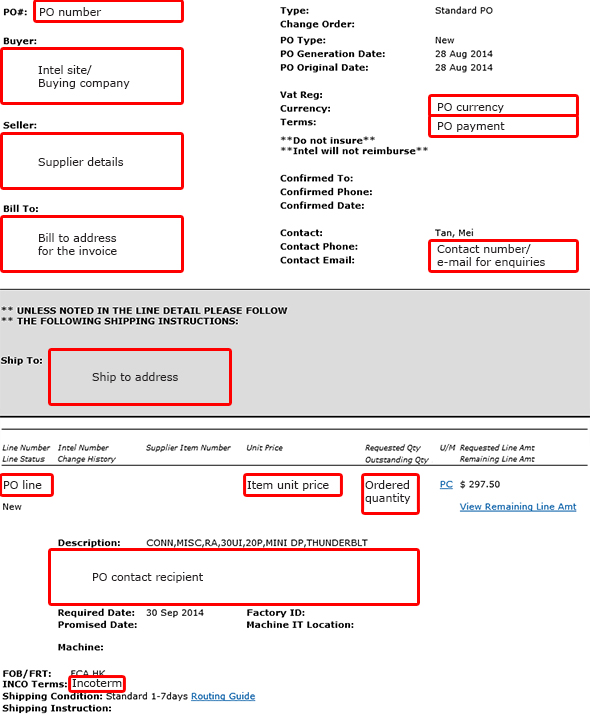
Result: The PO Recipient/Owner will be displayed.
|
Note: Contact the PO recipient IF
- Delivery date cannot be met.
- Price of items have changed.
- All other verification.
|
| Step |
Action |
| 1 |
Go to Intel Web PO.
|
| 2 |
Enter PO Number.
For example, 3000123456.
|
| 3 |
Click Search button.
|
| Result: The matching PO(s) will be generated.
|
| 4 |
Click PO number.
|
|
Result: The respective PO details will be displayed in a new tab.
|
| 5 |
Scroll down and look for Line Number.
|
|
Result: The Line Number will be displayed

|
|
Note: The lines will be indicated in sequence for multiple line items. For example, 00010, 00020, and 00030.
|
| Step |
Action |
| 1 |
Go to Intel Web PO.
|
| 2 |
Enter PO Number.
For example, 3000123456.
|
| 3 |
Click Search button.
|
| Result: The matching PO(s) will be generated.
|
| 4 |
Click PO number.
|
|
Result: The respective PO details will be displayed in a new tab.
|
| 5 |
Scroll down and look for Supplier Item Number.

|
| Step |
Action |
| 1 |
Go to Intel Web PO.
|
| 2 |
Enter PO number.
For example, 4200403597.
|
| 3 |
Click Search button.
|
|
Result: The PO record will be generated.
|
| 4 |
Click PO number.
|
|
Result:The detailed PO will be displayed in new tab.
|
| 5 |
Scroll down to view the required line item.
|
| 6 |
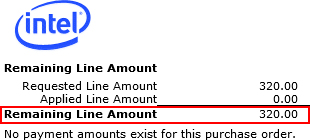
Click View Remaining Line Amt link.

|
|
Result:The remaining line amount details will be displayed in a new pop-up window.
|
| Step |
Action |
| 1 |
Go to Intel Web PO.
|
| 2 |
Enter PO number.
For example, 4200403597.
|
| 3 |
Click Search button.
|
|
Result: The PO record will be generated.
|
| 4 |
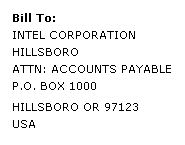
Click PO number.
|
|
| Step |
Action |
| 1 |
Go to Intel Web PO.
|
| 2 |
Enter PO Number.
For example, 3000123456.
|
| 3 |
Click Search button.
|
| Result: The matching PO(s) will be generated.
|
| 4 |
Click PO number.
|
|
Result: The respective PO details will be displayed in a new tab.
|
| 5 |
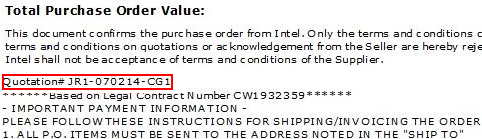
Scroll down and look for Total Purchase Order Value.
|
|
Result : The Quotation # or Quote ID will be displayed.
|
| Step |
Action |
| 1 |
Go to Intel Web PO.
|
| 2 |
Enter PO Number.
For example, 3000123456.
|
| 3 |
Click Search button.
|
| Result: The matching PO(s) will be generated.
|
| 4 |
Click PO number.
|
|
Result: The respective PO details will be displayed in a new tab.
|
| 5 |
Scroll down and look for Description.
|
|
Result : The PO Validity Date or Required Date will be displayed.
|
Notes:
- Required Date is the date which the items are expected to reach Intel.

- Order is valid from date is the validity date to indicate the duration/length of services being procured.

|
Limit PO
- Limit PO is represented when you see Order is valid from (also known as validity date).
- Order is valid from date is the validity date to indicate the duration/length of services being procured.
- For Limit POs, you may submit multiple invoices until the PO has been fully paid.
Goods PO
- Goods PO is represented when you see Required Date (the date which the items are expected to reach Intel.)
- For Goods POs, you are required to bill the unit price per number of quantities delivered.
- The PO has been closed/cancelled by Intel.
- Please contact the PO owner/recipient if you feel that the PO should not have been closed. You can find contact in the PO under Description.
| Step |
Action |
| 1 |
Go to Intel Web PO.
|
| 2 |
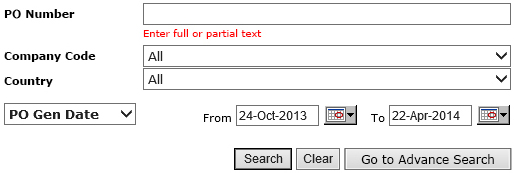
Enter related keywords to specify and narrow down the search criteria.
|
| 3 |
Click Search button.
|
|
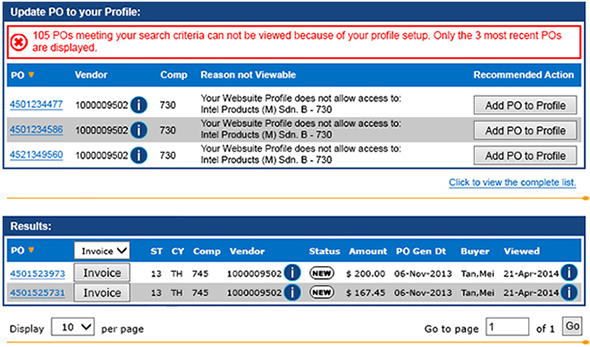
Result:The search result with matching criteria will be generated.
|
|
Note:You need to modify your profile setting in order to view more search results.
|
| 4 |
Click Add PO to Profile button.

OR,
Click link to view and select PO from a pop up window.

|
Results:
- If successful, the acknowledgement message will be displayed.

OR,
- Error message will be displayed.

|
Notes
- It takes 1 to 2 minutes to update your profile to the system.
- Error message will be generated in case the same Supplier Number/Vendor ID has already clicked on the same PO and still pending for approval.

|
| 5 |
Click Search button again to view the newly added PO result.
|
| Step |
Action |
| 1 |
Go to Intel Web PO.
|
| 2 |
Enter PO number.
For example, 4200403597.
|
| 3 |
Click Search button.
|
|
Result: The PO record will be generated.
|
| 4 |
Click PO number.
|
|
Result:The detailed PO will be displayed in new tab.
|
| 5 |
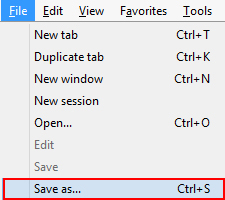
Click File > Save as… to keep a copy on your desktop.
OR,
Click Email PO link to send a copy to the designated email address.

|