
|
|
| My Profile Self Help | |
| Browse through the navigation panel for the information you are interested in. | ||||||

|
|
|

|
|||

| Step | Action |
| 1 | Go to My Profile. |
| 2 | Click Edit Profile tab. |
| Result: The Edit Profile page will be displayed. | |
| Note: You can display the list of vendor and company code base on a specific PO, vendor name, or company code. | |
| 3 |
Select option from dropdown. |
| 4 | Update the required information. |
| Note: Select supplier location-to-Intel location combination. | |
| 5 |
Click Submit Change button.
|
Results:
|
| Subject | Remark |
| Supplier Locations |
|
| Intel Locations |
|
Your Profile allows you to filter out transactions you do not wish to see. This means you don’t have to look through lists of transactions to find the ones that you’re responsible for. This also enables you to share the transaction workload with other users from your company.
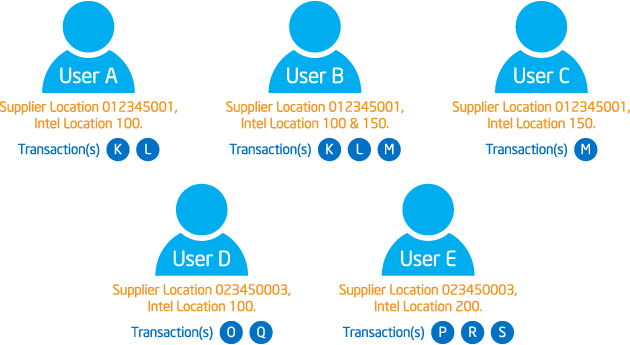
Note: It is most efficient if all users at a company can jointly agree on Profile settings to ensure proper ‘ownership’ of all transactions. Failure to manage Profiles across all users can leave some transactions un-owned and can impact the supply line.
| Step | Action |
| 1 | Go to My Profile. |
| 2 | Click Edit Profile tab. |
| Result: The Edit Profile page will be displayed. | |
| Note: You can display the list of vendor and company code base on a specific PO, vendor name, or company code. | |
| 3 |
SelectPO option. |
| 4 |
Enter PO number.
For example, PO number 4300123456 generated from Intel location 150 to supplier location 0123450001. |
Notes:
|
|
| 5 |
Click show vendors button. |
| 6 |
Select supplier location to Intel location combination.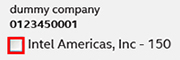
|
| Note: This indicates you would like to view PO’s placed from Intel location 150 to supplier location 0123450001. | |
| 7 |
Click Submit Change button.
|
Results:
|
| Step | Action |
| 1 | Go to My Profile |
| 2 | Click Edit Profile tab. |
| Result: The Edit Profile page will be displayed. | |
| Note: You can display the list of vendor and company code base on a specific PO, vendor name, or company code. | |
| 3 |
Select Vendor option.
|
| 4 | Click combo box. |
| Result : The list of supplier locations available on your account will be displayed accordingly. | |
| 5 |
Select supplier location.
For example, 0123450001. |
| Note: This indicates you would like to view PO’s placed to this supplier location. | |
| 6 |
Click show vendors button.
|
| 7 |
Select supplier location to Intel location combination.
For example, Intel Americas, Inc. – 150. 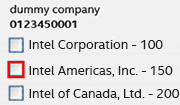
|
| Note : This indicates you would like to view PO’s placed from Intel location 150 to supplier location 0123450001. | |
| 8 |
Click Submit button.
|
Results:
|
| Step | Action |
| 1 | Go to My Profile |
| 2 | Click Edit Profile tab. |
| Result: The Edit Profile page will be displayed. | |
| Note: You can display the list of vendor and company code base on a specific PO, vendor name, or company code. | |
| 3 |
Select Company Code option.
|
| 4 | Click combo box. |
| Result : The list of Intel locations available on your account will be displayed accordingly. | |
| 5 |
Select Intel location.
For example, 150 – Intel Americas, Inc. |
| Note: This indicates you would like to view PO’s placed to your company from this Intel location. | |
| 6 |
Click show vendors button.
|
| 7 |
Select supplier location to Intel location combination.
For example, supplier location 0123450001. 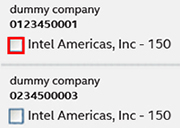
|
| Note : This indicates you would like to view PO’s placed from Intel location 150 to supplier location 0123450001. | |
| 8 |
Click Submit button.
|
Results:
|
| Step | Action |
| 1 | Go to Intel Web PO. |
| 2 | Enter related keywords to specify and narrow down the search criteria. |
| 3 |
click search  button. button.
|
| Result: The search result with matching criteria will be generated. | |
| Note: You need to modify your profile setting in order to view more search results. | |
| 4 |
Click Add PO to Profile  button. button.
OR, Click  link to view and select PO from a pop up window. link to view and select PO from a pop up window.
|
Results:
OR, |
|
Notes:

|
| Step | Action |
| 1 |
Go to supplier.intel.com. 
|
| 2 |
Click Register button.
|
| Result: The Registration page will be displayed. | |
| 3 | Click Manage My Account link. |
| 4 | Enter your User ID and Password. |
| 5 |
Click Sign In button. |
| Result: The Manage My Account page will be displayed. | |
| 6 | Click Account Information link. |
| Result: The Account Information page will be displayed. | |
| 7 | Update your personal information. |
| 8 |
Click Submit button.
|
| Result: Your personal information has been updated successfully. |

