
|
|
| My Profile Self Help | |
| Browse through the navigation panel for the information you are interested in. | ||||||

|

|
|

|
|||

| Step | Action |
| 1 |
Go to supplier.intel.com. 
|
| 2 |
Click Sign In button.
|
| Result: The Intel Login page will be displayed. | |
| 3 | Enter your User ID and Password. |
| 4 |
Click Sign In. |
| Result: The Supplier Information page will be displayed. | |
| 5 | Click Intel Web PO/Web Invoice/Payment Tracker > My Profile link. |
Result: The View Profile tab will be displayed.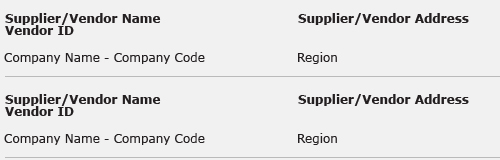 |
|
| Note : Click Edit Profile button to make changes to your current settings. |

| Step | Action |
| 1 | Go to My Profile > Company Information tab. |
| 2 | Update Local Company Address. |
| 3 |
Update Corporate Address. |
Notes:
|
|
| 4 | Update TAX/VAT/Company Reg. Number. |
| 5 |
Click Save Profile button.
|
Results:
|


| Step | Action |
| 1 | Go to My Profile. |
| 2 | Click Edit Profile tab. |
| Result: The Edit Profile page will be displayed. | |
| Note: You can display the list of vendor and company code base on a specific PO, vendor name, or company code. | |
| 3 |
Select option from dropdown.
|
| Notes:Step-by-step instructions will be displayed on screen | |
| 4 | Select supplier location-to-Intel location combination. |
| 5 |
Click Submit Change button.
|
Results:
|