|
|
| Hot Topics | |
| Browse through the navigation panel for the information you are interested in. |

| Step | Action |
| 1 |
Go to supplier.intel.com.
|
| 2 |
Click Sign In button.
|
| Result: The Intel Login page will be displayed. | |
| 3 | Enter your User ID and Password. |
| 4 | Click Sign In button. |
| Result: The Supplier Information page will be displayed. | |
| 5 | Click Manage My Account > Application Access link. |
| Result: The Application Access page will be displayed. | |
| 6 |
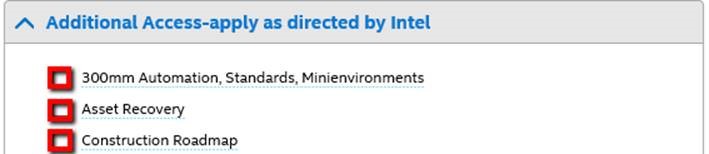
Select checkbox to request for additional permissions.
|
| 7 |
Click Next.
|
| Note: You might be prompted to provide Country of Residence if you have not fill up the column before. | |
|
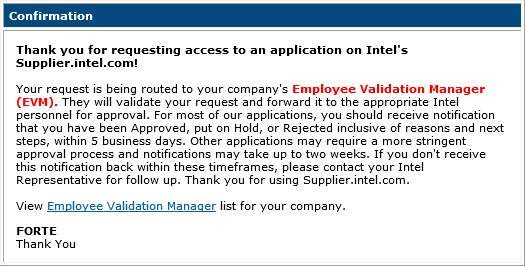
Result: The confirmation message will be displayed. Your application is now subject to your EVM’s approval.
|
| Step | Action |
| 1 |
Go to supplier.intel.com.
|
| 2 |
Click Sign In button.
|
| Result: The Intel Login page will be displayed. | |
| 3 | Enter your User ID and Password. |
| 4 | Click Sign In button. |
| Result: The Supplier Information page will be displayed. | |
| 5 | Click Manage My Account > Upgrade to Standard (Full) Registration link. |
|
Result: The Upgrade to Standard (Full) Registration page will be displayed.
|
|
| 6 | Click Begin button. |
| 7 |
Select the checkbox for Intel® Web Suite (Invoice/PO/Payment Tracker/ASN/Forecast) - Suppliers Only.
|
| 8 | Click Next button. |
| Result: The access request form will be displayed. | |
| 9 | Update all the mandatory fields. |
| 10 | Click Next button. |
|
Result: The upgrade request will be routed to your company’s EVM for approval. Note: If your company does not have EVM, kindly refer to Supplier Registration > How do I become an EVM? |
| Step | Action |
| 1 | Go to Intel Web PO. |
| 2 |
Click EVM conversion link.
|
| Result: The Upgrade to Standard (Full) Registration page will be displayed. | |
| 3 | Click Begin button. |
| 4 |
Select the checkbox for Intel® Web Suite (Invoice/PO/Payment Tracker/ASN/Forecast) - Suppliers Only.
|
| 5 | Click Next button. |
| Result: The access request form will be displayed. | |
| 6 | Update all the mandatory fields. |
| Note: Mouse over the “?” icon for explanation of what to fill. | |
| 7 | Click Next button. |
|
Result: The upgrade request will be routed to your company’s EVM for approval. Note: If your company does not have EVM, kindly refer to Supplier Registration > How do I become an EVM? |
| Step | Action | ||||||||||
| 1 |
Go to supplier.intel.com.
|
||||||||||
| 2 |
Click Sign In.
|
||||||||||
| Result: The Intel Login page will be displayed | |||||||||||
| 3 | Enter your Login ID and Password. | ||||||||||
| 4 |
Click Sign In button.
Result: The Supplier Information page will be displayed. |
||||||||||
| 5 |
Click Manage My Account > Check Request Status link. Result: The Check Request Status page will be displayed. The date and status of your request will be displayed.
|
| Step | Action |
| 1 |
Go to supplier.intel.com.
|
| 2 |
Click Sign in.
|
| Result: The Intel Login page will be displayed. | |
| 3 | Enter your User ID and Password. |
| 4 |
Click Sign In button. Result: The Supplier Information page will be displayed. |
| 5 | Click Manage My Account > Account Information link. |
| Result: The Account Information page will be displayed. | |
| 6 |
Update e-mail address and other personal data and click Save.
Result: The information has updated successfully. |
| Step | Action |
| 1 | Go to Intel Web PO. |
| 2 |
Click Advance Search button.
|
|
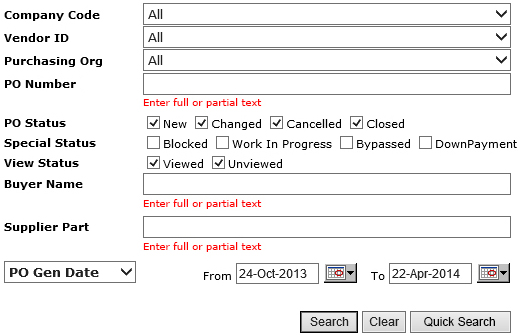
Result: The Advance Search form will be displayed.
|
|
| 3 | Enter related keywords to specify and narrow down the search criteria. |
|
Note: Select the checkbox next to the necessary PO status type(s), if necessary.
|
|
| 4 |
Click Search button.
|
|
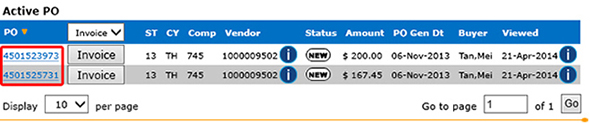
Result: The matching POs will be generated.
|
|
| Note: Most statuses of a specific PO will be displayed under the Status column, EXCEPT for Bypassed PO and Down Payment PO. |
| Step | Action |
| 1 | Go to Intel Web PO. |
| 2 | Enter related keywords to specify and narrow down the search criteria. |
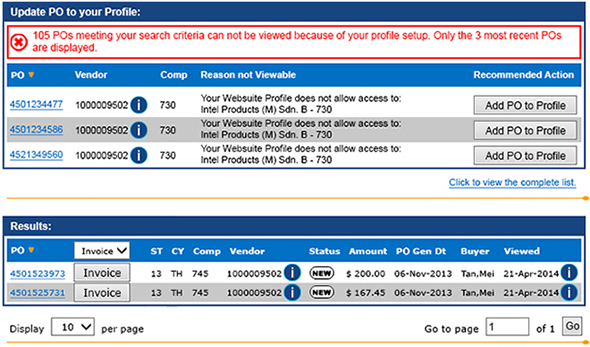
| 3 |
Click Search button.
|
|
Result: The search result with matching criteria will be generated.
|
|
| Note: You need to modify your profile setting in order to view more search results. | |
| 4 |
Click Add PO to Profile button.
|
Results:
|
|
Notes:
|
|
| 5 |
Click Search button again to view the newly added PO result.
|
| Step | Action |
| 6 | Go to Intel Web Invoice. |
| 2 | Click Create New Invoice link. |
| Result: The Create New Invoice screen will be displayed. | |
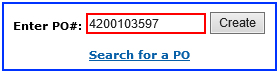
| 3 |
Enter PO number.
For example, 4200103597.
|
| Note: You must enter the entire PO number in the PO field for Intel Web Invoice to retrieve the requested information and in order to continue. | |
| 4 | Click Create button. |
| Result: The invoice for PO number entered will be created. | |
Notes:
|
|
| 5 |
Update the mandatory fields,
|
| 6 | Click Review Invoice button. |
| Result: The Review Invoice screen will be displayed. | |
| Note: The errors and missing fields will be notified in red. | |
| 7 |
Click Submit Invoice button.
OR, Click Edit Invoice button for amendment. |
| Result: The TAX Invoice Confirmation screen will be displayed. | |
Notes:
|
| Step | Action |
| 1 | Go to Intel Payment Tracker. |
| 2 |
Enter search criteria. For example, invoice number 6172123456. |
| 3 |
Click Generate Report button.
|
| Result: The matching record will be displayed. | |
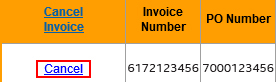
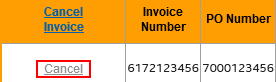
| 4 |
Click Cancel link.
|
| Result: The Invoice Cancellation Request page will be displayed as pop-up. | |
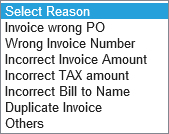
| 5 |
Update reason for cancellation.
|
| Note: State the reason in Remark column, if Others is chosen. | |
| 6 |
Click Submit button.
|
|
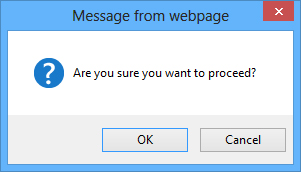
Result: The confirmation message will be displayed.
|
|
| 7 | Click OK button. |
Results::
|
|
Notes::
|
| Step | Action |
| 1 | Go to Intel Payment Tracker. |
| 2 |
Enter search criteria.
For example, PO number 4200103597. |
| 3 |
Click Generate Reports button.
|
| Result: The matching record will be displayed. |
| Step | Action |
| 1 | Go to Intel Web Invoice. |
| 2 | Click Create Credit Memo link. |
| Result: The Create New Credit Memo screen will be displayed. | |
| 3 |
Enter PO number.
For example, 4200103597.
|
| Note: You must enter the entire PO number in the PO field for Intel Web Invoice to retrieve the requested information and in order to continue. | |
| 4 | Click Create button. |
| Result: The credit memo for PO number entered will be created. | |
Notes:
|
|
| 5 |
Update the mandatory fields,
|
| 6 | Click Review Credit Memo button. |
| Result: The Review Credit Memo screen will be displayed. | |
| Note: The errors and missing fields will be notified in red. | |
| 7 |
Click Submit Credit Memo button.
OR, Click Edit Credit Memo button for amendment. |
| Result: The Credit Note screen will be displayed. | |
| Note: Supplier may print a copy of the generated invoice confirmation. |