|
|
| Account Management Self Help | |
| Browse through the navigation panel for the information you are interested in. | ||||||

|
|
|
|
|||

| Step | Action |
| 1 | Go to supplier.intel.com. |
| 2 | Click Sign In > enter your User ID and Password > click Sign In. |
| Result: The Supplier Information page is displayed. | |
| 3 | Click Account > Application Access. |
| Result: The Application Access page is displayed. | |
| 4 |
Select checkbox to request for additional permissions.
|
| 5 | Click Submit. |
|
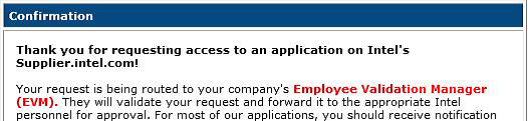
Note: You might be prompted to provide additional information. Result: The confirmation message is displayed. Your application is now subject to your EVM’s approval.
|
| Step | Action |
| 1 | Go to supplier.intel.com. |
| 2 | Click Sign In > enter your User ID and Password > click Sign In. |
| Result: The Supplier Information page is displayed. | |
| 3 |
Click Account > Data Access for WebSuite.
|
| Result: The Data Access for WebSuite page is displayed. | |
| 4 |
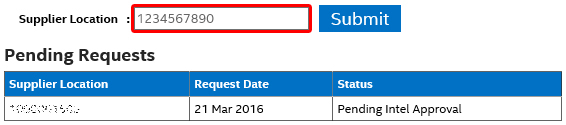
Enter the Supplier ID OR Supplier Location.
|
| 5 | Click Submit. |
|
Result: Your request has been received, and can be located under the Pending for Approval section. Note: Based on the status and approval protocols, your request will be displayed as Approved, Rejected, or Pending for Approval. |
| Step | Action |
| 1 | Go to supplier.intel.com. |
| 2 | Click Sign In > enter your User ID and Password > click Sign In. |
| Result: The Supplier Information page is displayed. | |
| 3 |
Click Account > Data Access for WebSuite.
|
| Result: The Data Access for WebSuite page is displayed. | |
| 4 | Go to Approved Request section. |
| 5 | Identify the Supplier ID OR Supplier Location you would like to remove. |
| Note: Removing unneeded Supplier Location helps you manage the amount of data that you see. | |
| 6 |
Click Remove.
|
| Note: The selected Supplier Location is now removed from your account. |
| Step | Action | |||||||||
| 1 | Go to supplier.intel.com. | |||||||||
| 2 | Click Sign In > enter your User ID and Password > click Sign In. | |||||||||
| Result: The Supplier Information page is displayed. | ||||||||||
| 3 |
Click Account > Check Status of Application/EVM Requests.
|
|||||||||
Result: The date and status of your request is displayed.
|