Intel® Web Invoice introduces a new capability enabling you to invoice Intel for Down Payment POs. The Create Invoice process works the same as the Web Invoice previously offered, but the Down Payment and On Shipment sections are now displayed uniquely and separated on the screen. The top portion of the Create New Invoice screen is displayed below.
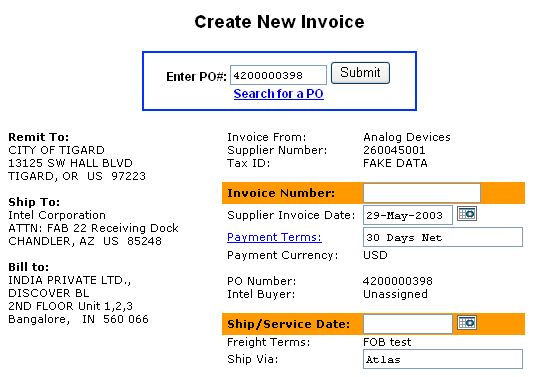
The bottom portion of the screen has been broken down into two sections: Down Payment Request and On Shipment Invoice. A sample of the screen is shown below.
Down Payment Request - This enables you to submit your request for a pre-payment, or down payment, as agreed upon with your commodity manager or buyer. The approved down payment amount and due date is displayed on the Intel® Web PO and serves as the template for the Down Payment Request.
On-Shipment Invoice - This is where you submit your invoice for 100% of the price listed on the PO. This invoice is to be submitted when the shipment leaves your dock and is therefore called the On-Shipment invoice. Intel's back-end accounting system will deduct the previously paid Request for Down Payment amount from this 100% invoice. Freight and taxes are shown on the on-shipment portion of the screen and cannot be selected within the down payment section.

Create a Down Payment Request:
- Step 1
- Identify the Down Payment PO number. Enter the PO number into the Web Invoice application and the Create Invoice for Down Payment PO screen will be retrieved.
- Step 2
- Focus on the section "Request for Down Payment." Check the Down Payment line and enter the down payment amount. Once you have confirmed your entries, please submit the request. The application will walk you through the Review and Confirmation screens. You are requested to print the Request for Down Payment Confirmation for your records.
Notes:
- If the PO permits multiple down
payments, the supplier is requested
to submit each one individually.
-The Web Invoice application will only display a single line, but will display the summed up amount of the multiple down payments, as approved on the PO. Each down payment request should be submitted against the single down payment line template.
-The sequence of multiple requests can be determined by the sequence of the due dates approved on the PO.
- The application will check the
amount of the Request for Down Payment
against the amount approved on the
PO.
-If the amount of the Request for Down Payment exceeds the approved amount on your PO, the create invoice screen will disallow submission of this request. The amount of your transaction must be equal to or less than the amount approved in order for the system to accept it.
-If a subsequent partial payment request exceeds the amount approved on your PO, when the requested amount is added to a prior partial payment request submission, the system will auto reject the second request with the following error: Long text: Request for down payment exceeds amount authorized on the PO line. Please contact your buyer with questions. Short text: Down payment exceeds amount authorized on the PO line.
- Down Payment Requests do not
allow for taxes or freight. All
terms and conditions are agreed
upon with your commodity manager
and buyer.
-The application will not permit to submit a Request for Down Payment together with taxes and/or freight from the On Shipment section. This will generate the following error: Down Payment Restriction: On-shipment charges such as [Taxes and/or Freight] cannot be made on a request for a down payment. To successfully submit the down payment request you must remove your input of taxes and/or freight in the On Shipment section .
- Down payment requests and on shipment invoices cannot be submitted concurrently. This will be disallowed and the following error message will be displayed: Down Payment Restriction: On-shipment charges such as [on shipment line number] cannot be made on a request for a down payment. To resolve this you must remove the selection of the on shipment invoice line and submit the down payment line only.
Create an On Shipment Invoice
- Step 1
- After product ships, continue with processing the on-shipment invoice.
- Identify the Down Payment PO Number. Enter the PO number into the Web Invoice application and the Create Invoice for Down Payment PO screen will be retrieved.
- Step 2
Focus on the section "On Shipment Invoice". Check the On Shipment line and key in the quantity and invoice amount.
- It is critical your invoice is for
100% of the PO line amount.
Once you have confirmed your input, please submit the invoice. The application will walk you through the Review and Confirmation screens. You are requested to print the Invoice Confirmation for your records.
- It is critical your invoice is for
100% of the PO line amount.
Notes:
- The On Shipment transaction should be billed at 100% amount of the PO line, once the tool ships. This amount is displayed on the On Shipment line template.
- The On Shipment Invoice is to
be submitted after the Request for
Down Payment, upon the shipment
of the goods.
-The On Shipment Invoice cannot be submitted in conjunction with the Request for Down Payment.
-If the On Shipment invoice is submitted prior to the Request for Down Payment, the Down Payment Request will be blocked for manual analysis, in favor of the On Shipment invoice.
- The Create Invoice for the On Shipment Invoice permits taxes and/or freight, as determined on the PO.
-The supplier should NOT deduct the Down Payment Request amount from the On Shipment Invoice when submitting the On Shipment Invoice transaction. Intel's backend system of record will automatically conduct this disbursement prior to payment of the on shipment transaction.
-If the invoice interfaces and it is determined that the on shipment invoice is not for 100% of the PO amount, the invoice amount will be short paid and the payment will contain only 80% of the invoice value.
-The create invoice screen will enable the supplier to submit taxes and/or freight
-If the invoice interfaces and it is determined that the PO does not permit taxes and/or freight, the taxes and/or freight values will be short paid and the verbiage will state "freight short paid".
-All terms and conditions are agreed upon by the commodity manager or buyer.