Expedite Parts -> Ship
To Intel (Expedite)
This display
expedites order shipments which are not
shipped to Intel and the shipments which are shipped but not received at Intel.
This allows
you to ship and unship the expedite order shipments. And also allows you to
cancel the shipments which are not shipped to Intel only.
1. Provide your search criteria.

a. Selection of Supplier & Status is
mandatory to Search and rest of the fields optional.
b. When From & To Dates are
provided, the date range should not be greater than 90 days.
2. After you provided the search
criteria’s, click on Search button to view expedite order shipments on screen,
else click on Export to Excel button to export them to excel.

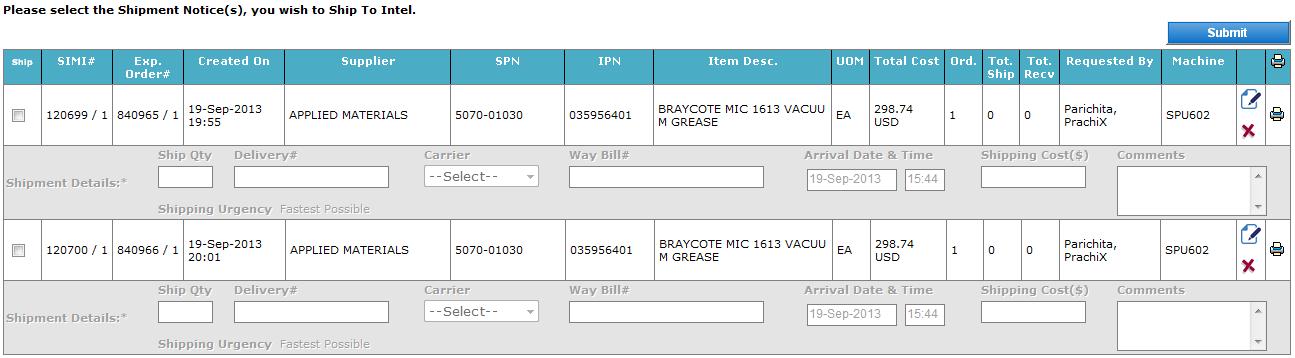
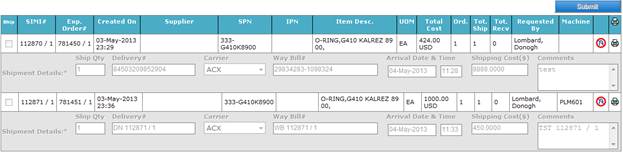
3. Search Results are shown as below.
a.
Not Shipped To Intel
b.
Shipped, But Not Received At Intel
4.
Ship Expedite Order Shipment(s)
a. Select Status as “Not Shipped to
Intel” and click on Search button.
b. Tick the Ship checkbox for a shipment
which you would like to ship.

c. Enter shipment details and click on
Submit button.
5.
Unship an Expedite Order Shipment
a. Select Status as “Shipped, But Not
Received at Intel” and click on Search button.
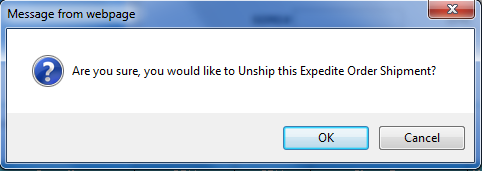
b. Click on Unship icon button.

c. Click on OK button in confirmation window.
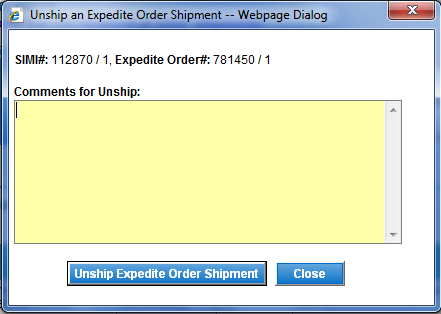
d. Provide your comments for Unship and click
on Unship Expedite Order Shipment button.
6.
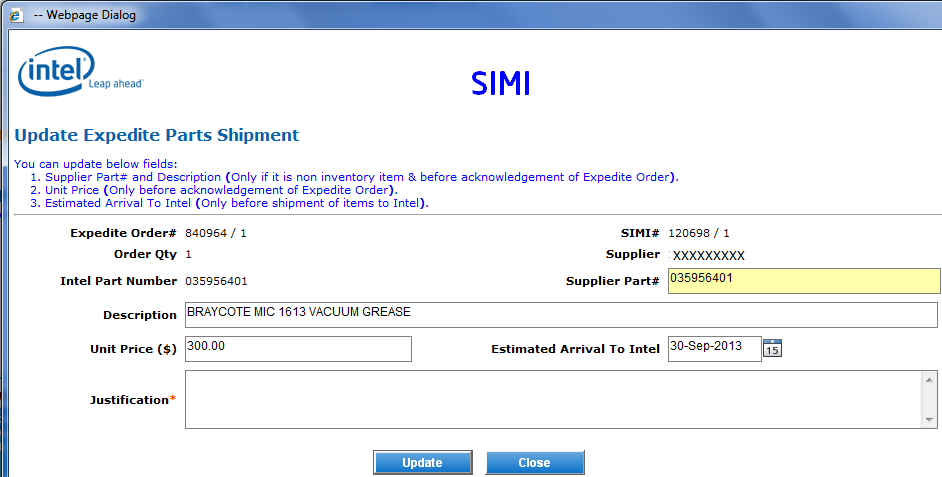
Edit Expedite Order Shipment
a. Select Status as “Unacknowledged” and
click on Search button.
b. Click on Edit icon button.

d. update Unit Price ,EAT and Justification
fields value and click
on Update button.
7.
Cancel an Expedite Order Shipment
a. Select Status as “Not Shipped to
Intel” and click on Search button.
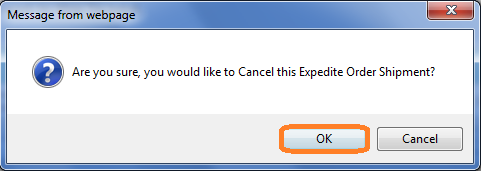
b. Click on Cancel icon button.

c. Click on OK button in confirmation window.
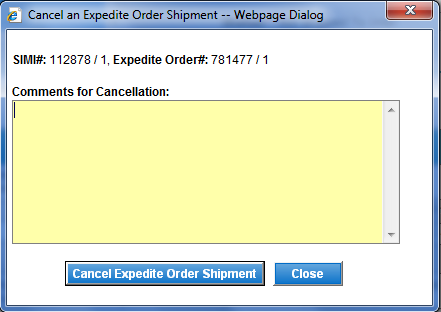
d. Provide your comments for
Cancellation and click on Cancel Expedite Order Shipment button.
8.
Print Expedite Order Shipment(s)
a. Click on Print icon at record level
to print an Expedite Order Shipment.

b. To print all expedite order shipments
which displayed on screen, click on Print icon at header level.

9. Click on Reset button to reset your
search criteria’s and search results.